Search or browse by topic. If you can’t find what you need, our team is only a message away.
- Sign up to PAAM by entering your email address and creating a password. The email address used during registration will become the Super Admin account for the system.
- Enter the verification code sent to your email address.
- Once your email address has been verified, enter your name, company or organisation name, and phone number.
- Next, choose your PAAM URL. You can select one of the suggested URLs or create your own, provided it is available.
- Enter the email address you would like PAAM emails to be sent from.*
- Once your PAAM system has been configured, you can sign in and start building your system.
* Note: At this stage, you will receive an email from Amazon AWS requesting authorisation to use your chosen email address with Amazon SES and Amazon Pinpoint. Clicking the link in the email will open an Amazon AWS confirmation page in a new window. Once you have completed the authorisation, return to PAAM and continue with the setup process.
Once your payment provider has been configured and integrated with your PAAM system, you will be able to access the Deposits Overview from the main menu.
- Name (linked to the user's profile)
- Paid status
- Payment method
- Amount
- Date created
- Date paid
- Deposit action (Withhold / Return)*
- Block button**
- Arrow (>) to view a mini profile or open the full profile
Deposit Actions
The Deposit column provides two actions:
Withhold
Allows you to fully or partially withhold a deposit in accordance with your terms and conditions. This is a manual action and allows you to record a reason, which can be viewed by other administrators.
Return
Marks a deposit as ready to be returned.
Note: Deposit returns are not processed by PAAM. Setting a deposit to Return or Withhold simply updates the deposit status within PAAM, allowing the information to be exported and processed through your merchant provider or another payment method.
Once a deposit has been returned outside of PAAM, you will need to manually update the deposit status within PAAM so the system reflects that the return has been completed.
Blocking Team Members
The Deposits Overview also allows you to block individuals from rejoining your team. Click the Block button and enter a reason for the block. This reason will be recorded on the user's profile for future reference.
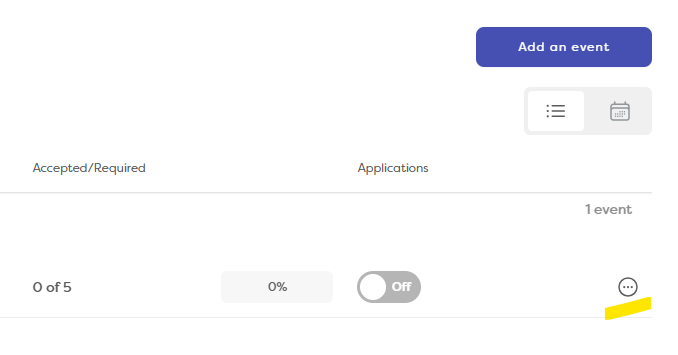
From here, you can:
- Edit Event – Opens the event settings, allowing you to update the event details.
- Archive Event – Removes the event from your active events list while retaining the event data.
- Delete Event – Marks the event as deleted and removes it from your active events list.
- Duplicate Event – Creates a copy of the event, which you can edit before saving.
Note: To view archived or deleted events, click More Filters and select Include Archived & Deleted Events.
From the filtered view, you can also reinstate archived or deleted events and return them to your active events list.
If you want to invite someone to your PAAM system as either a user or an administrator, go to:
Members > Add Member
Enter their first name, surname, email address, and password, then select the appropriate access level.
They can sign in and complete the rest of their profile.
They can also change their password at any time via Settings.
When viewing a member as an administrator with the appropriate access permissions, you'll see a complete overview of their profile and activity within PAAM.
Member
The Member tab displays the user's basic information, including:
- Name
- PAAM ID
- Email address
- Mobile number
- Last login date
- Marketing opt-in/out status
You'll also see their current and historical event participation (where applicable), along with any notes that have been added to their profile.
Profile
The Profile tab displays the member's completed profile information, including their application responses and personal details.
Tags
The Tags tab displays any tags that have been assigned to the member.
Events
The Events tab provides an overview of the member's current and past events (where applicable).
Shifts
The Shifts tab shows the shifts the member has been assigned to, including whether those shifts were worked or not worked.
Deposits
The Deposits tab displays:
- Deposit amounts
- Payment dates
- Payment methods
- Associated events
Note: Administrators with the appropriate permissions can also comp deposits, add manual deposits, and mark deposits as Returned or Withheld from this page.
Files
The Files tab contains any files uploaded by the member, such as identification documents, certificates, or experience-related information.
References
The References tab displays the status of any reference requests, including when they were requested and received.
Notes
The Notes tab provides a history of notes added to the member's profile by administrators.
Payments
The Payments tab contains a history of deposit-related payments and payments for merchandise.
Orders
The Orders tab displays a history of purchases made through PAAM, such as store items, meal vouchers, and other products.
Member Actions
On the right-hand side of the screen, administrators with the appropriate permissions can perform a range of actions from any member page:
- Impersonate Member – Access the system as the member to assist with applications, cancellations, or profile updates.
- Block User – Prevent the member from using the system and record a reason for the action.
- Delete Account – Remove the member's account, typically at the user's request.
- Email Member – Send an email directly to the member.
- Text Member – Send an SMS message (if SMS functionality is enabled).
- Call Member – Contact the member using the stored phone number (if telephony integration is enabled).
- Jump to PAAM ID – Quickly open another member's profile using their PAAM ID.
- Search Members – Search for and navigate to another member's profile.
Adding Notes
At the bottom of the member profile, administrators can add notes relating to the member.
All notes are automatically date and time stamped, and other administrators can see who added each note.
Navigate to Members from the main menu.
From here, you can search for members using:
- Name – Enter all or part of a member's name.
- Email Address – Enter all or part of an email address.
- Mobile Number – Enter the mobile number in one of the following formats:
-
- 01234 567891
- 1234 567891
- User ID – Enter the unique numerical identifier assigned to the user when they signed up.
Note: If a user does not appear in the search results, they may have deleted their profile. To include deleted profiles in your search, select Include Deleted Members.
You can also select Include Blocklisted Members to display users who have been blocked by an administrator.
You can create events during the initial setup of your PAAM system or at any time afterwards, provided you are logged in as an administrator with the appropriate permissions.
-
Select Add an Event
-
Upload an image for the event (this can be a logo).
-
Enter an event name.
-
Choose an event status:
- Hidden – The event will not be visible to users.
- Open – The event will be visible and users can apply.
- Closed – The event will be visible, but applications will not be accepted.
- Coming Soon – The event will display a "Coming Soon" message.
- Full – The event will be visible and marked as full.
-
Set the start and end dates.
-
Specify the number of places available.
The number of places created will use your available credits. If you do not have enough credits, you can purchase additional credits.
-
Enter the event location.
-
Add an event description.
This can be edited at any time after the event has been created.
-
Create the event.
Once saved, the event will be displayed according to the status and settings you have selected.
Note: If you are using the free trial, we recommend creating a test event with a small number of places available. This allows you to familiarise yourself with the event setup and application process before creating live events.
When configuring your branding, we recommend having a high-resolution version of your logo ready, along with a preferred background image. You can preview your branding before saving any changes.
You may also wish to choose a colour palette that complements your brand. PAAM includes default colours for buttons, text, notifications, and other interface elements. If preferred, you can leave these as the default settings and return to customise them later.
For advanced customisation, you can add your own custom styles by editing the CSS directly.
This section contains your organisation's terms and conditions.
Users must accept these terms and conditions during the registration process before they can create an account.
The sign up form is initially configured when setting up your PAAM system and can be edited at any time via:
Settings > Sign Up Form
The first section of the sign up form contains the following default fields:
- Profile Photo
- First Name
- Last Name
- Phone Number
- Address
- Date of Birth
These fields are included by default and can be supplemented with additional questions to meet your organisation's requirements.
You can create multiple sections and section headings, which will be displayed as separate pages to applicants during the sign up process.
Use the form field options on the right-hand side of the screen to add questions and define response types, such as:
- Tick boxes
- Yes/No questions
- Text fields
- Dropdown lists
- And more
PAAM also includes a selection of Pre-Defined Questions that can be dragged and dropped into your sign up form as required.
You can preview the form at any time and return later to add, edit, or remove questions.
Note: If you delete a question that applicants have already answered, the associated response data will also be permanently removed. If you may need this information in the future, ensure it is exported before deleting the question.
All users, including administrators, are required to complete the sign up form and any mandatory fields. This allows administrators to experience the application process exactly as applicants see it.
To grant a user administrator access, you must have the appropriate admin permissions yourself.
- Navigate to Settings > Admin Access.
- Search for the user and click the Edit icon under Actions.
- Select the role you would like to assign:
- Onsite Event Admin – Provides administrative access to the onsite section for multiple events.
- Single Event Admin – Provides administrative access to the onsite section for a single event.
- All Event Admin – Provides administrative access to both onsite and offsite event management for one or more events.
- Finance Admin – Provides access to event financial information, including deposits.
- Super Admin – Provides full access to all areas of the system.
-
Click Next to configure Event Permissions.
- Select specific events the administrator should have access to, or
- Enable access to all events.
-
Configure any Additional Permissions.
For example, you may wish to allow an event administrator to:
- Access event financial information
- Contact members
- Access additional administrative functions
Editing Admin Access
To change a user's administrator access, navigate to Settings > Admin Access, locate the user, and click the Edit icon under Actions.
You can then update their role, event permissions, or additional permissions as required.
Removing Admin Access
To remove a user's administrator access completely, navigate to Settings > Admin Access, locate the user, and select Delete under Actions.
This will remove all admin permissions from the user account.
Admin notification settings can be configured via:
Settings > Admin Notifications
General Settings
Enter the email addresses that should receive admin notifications. Multiple email addresses can be added by separating them with commas.
Application Settings
This section allows you to configure the notification emails sent to event administrators when applications are received.
An email template is provided by default and can be customised to include any information you require.
Note: When editing templates, ensure you retain any email variables (shown on the right-hand side of the screen). These variables automatically populate information specific to the applicant, such as their first name, event details, and other relevant data.
Cancellation Notifications
This section allows you to configure the notification emails sent when an applicant cancels their place at an event.
An email template is provided by default and can be customised as required.
Note: As with application notifications, ensure any email variables remain in the template to allow PAAM to automatically insert the relevant user and event information.
The Blocklist allows you to prevent individuals from signing up to your PAAM system or applying for events.
To add someone to the Blocklist, navigate to:
Settings > Blocklist Rules
Select Add Rule and choose one of the following identifiers:
- Email Address
- Phone Number
- Address
- Member ID
Once a rule has been created, any user matching that information will be prevented from registering or applying.
Searching the Blocklist
You can search the Blocklist to view existing entries and see:
- The date the individual was blocked
- The reason for the block
- The administrator who created the block
Removing a Blocklist Entry
To remove someone from the Blocklist, search for the entry and click the red Bin icon under Actions on the right-hand side of the screen.
The individual will then be able to register and apply again, subject to any other restrictions that may be in place.
Use Bulk Actions to block multiple users from the system at once.
To access this feature, navigate to:
Settings > Bulk Actions > Bulk Block Users
A template file is provided to ensure your data is formatted correctly for import.
- Download and complete the template.
- Upload the completed .csv file by either selecting it or dragging and dropping it into the upload area.
- Click Submit to process the import.
Once completed, the users contained within the file will be added to the Blocklist and prevented from registering or applying through the system.
To configure cancellation settings for your PAAM system, navigate to:
Settings > Cancellation
This section allows you to define what happens when a user cancels their place at an event.
Cancellation Settings
Within the Cancellation Settings tab, you can configure:
- Whether users are allowed to cancel their event places.
- The message displayed when cancellations are permitted (for example, before the cancellation deadline).
- The number of days before an event that cancellations are allowed, along with whether a cancellation window should be enforced. The default setting is 7 days.
- The message displayed when a user attempts to cancel after the cancellation deadline has passed.
- Whether an automatic confirmation email should be sent when a user cancels.
- Whether event administrators should receive an email notification when a cancellation is made.
- Whether users should be automatically removed from future events.
- Whether deposits should automatically be marked for review before being returned or withheld.
Cancellation Form
You can configure the cancellation form within the Cancellation Form tab.
For example, you may wish to ask:
Please let us know why you are cancelling your place.
A free-text field can be added to allow users to provide additional information about their cancellation.
Cancellation Email - User
A default cancellation email template is provided for communications sent to users following a cancellation.
The template can be customised to include additional information as required.
Note: When editing email templates, ensure you retain the email variables shown on the right-hand side of the screen. These variables automatically populate information such as the user's name, event details, and other relevant data.
Cancellation Email - Admin
A default cancellation email template is also provided for notifications sent to administrators when a user cancels their place.
The template can be edited as required to include additional information.
Note: As with the user template, email variables should not be removed. These variables automatically populate information such as the user's name, email address, and the event they have cancelled from.
You can configure the default messages shown throughout your PAAM system via:
Settings > Default Messages
The available default messages include:
- Volunteer Dashboard Default Message – Displayed on the volunteer dashboard.
- Account Suspended Default Message – Displayed to users whose accounts have been suspended.
- No Events to Apply To Default Message – Displayed when there are currently no events available for users to apply to.
These messages can be customised at any time and updated as your requirements change.
Discounts can be configured for returning staff or volunteers who are required to pay a deposit.
To set up a discount, navigate to:
Settings > Discounts
Enter the amount you would like to deduct from the standard deposit amount for eligible returning members.
Example:
- Standard deposit amount: £100
- Discount amount: £25
- Deposit payable by returning members: £75
The discount will be automatically applied when eligible returning staff or volunteers sign up for an event.
PAAM includes a range of pre-configured exports, including event-specific exports available within each event.
Additional default exports can be managed via:
Settings > Exports
From here, you can modify existing exports by adding, removing, or reordering fields to suit your reporting requirements.
Editing a Default Export
- Navigate to Settings > Exports > Default Exports.
- Locate the export you wish to edit and open it.
- Drag and drop fields to reorder them.
- Click the three-dot menu next to a field to:
- Rename the field
- Change the field format
- Delete the field from the export
- To add new fields, click the arrow next to an available field in the data panel on the right-hand side of the screen.
- Save your changes.
Creating a Custom Export
You can also create your own custom exports.
- Create or select a category for the export.
- Create the new export.
- Configure the export by adding the required data fields.
- Drag and drop fields from the data panel on the right into your export.
- Arrange the fields in the desired order.
- Save the export.
Once created, custom exports can be edited at any time and used alongside the default exports provided by PAAM.
Merchant provider integration can be completed during the initial setup of your PAAM system or configured at a later date.
Payment settings can be accessed via:
Settings > Payment Settings
Integrating a merchant provider allows PAAM to process deposits and payments for items sold through the shop.
Note: You will not be able to accept deposits or process payments until a merchant provider has been configured and connected to your PAAM system.
The Shop feature will also remain hidden until a valid merchant provider integration has been set up.
Once your merchant provider has been successfully connected, payment functionality will become available throughout the system.
You can configure your Registration Agreement during the initial setup of your PAAM system or update it at any time via Settings.
The Registration Agreement contains the terms and conditions that users must read and accept when creating an account and accessing your PAAM system for the first time.
You can edit the agreement at any time, and any changes will apply to future users registering with the system.
To add tracking codes such as Google Analytics or Google Tag Manager, navigate to:
Settings > Scripts
Paste either:
- The complete tracking code, including the <script> tags, or
- The JavaScript code only
Note: If you paste the JavaScript code without <script> tags, PAAM will automatically add them for you.
Once saved, the script will be included across your PAAM system, allowing your tracking or analytics platform to collect data as configured.
The Starter Checklist is configured by default to be available only to paid staff. This setting can be controlled by administrators when creating or editing groups.
The checklist includes questions based on the HMRC Starter Checklist requirements at the time your PAAM system is set up. As HMRC requirements may change over time, you should periodically review and update the form to ensure you continue collecting the information required for payroll purposes.
To view or edit the Starter Checklist, navigate to:
Settings > Starter Checklist
The form can be customised using the same form builder used for the Sign Up Form. You can add, edit, remove, or rearrange fields to meet your organisation's requirements.
Note: If you make changes to the Starter Checklist, ensure any information required for payroll processing continues to be captured correctly.
No questions match your search. Try a different term or .
Still have a question?
We’re happy to help. Get in touch and we’ll point you in the right direction.
Contact us